icon High-Fidelity AI Inpainting

GPT Image 1.5: High-Fidelity AI Image Editor
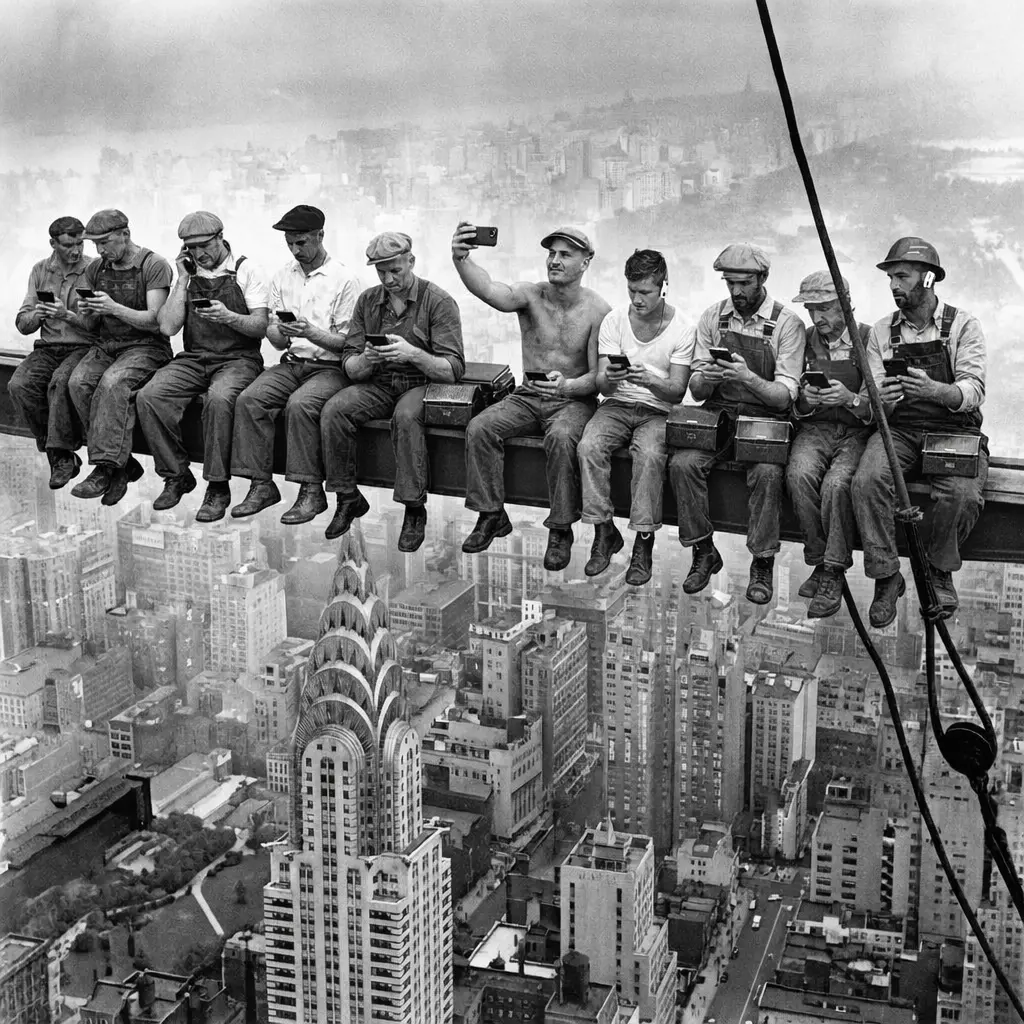
Modify your images with unmatched precision. Whether adding objects, replacing backgrounds, or fixing details, GPT Image 1.5 Edit strictly preserves your original composition and lighting while delivering photorealistic results from simple text prompts.
GPT Image 1.5 AI editor demonstration showing precise generative fill and object replacement with consistent lighting
icon Editing Guide

How to Use GPT Image 1.5 High-Fidelity Editor

Follow these steps to modify your images with surgical precision. From object replacement to generative fill, achieve photorealistic edits while preserving your original composition.
Step 1

Upload and Select Tool

Upload your image to Toolplay and select the 'GPT Image 1.5 Edit' mode to access advanced high-fidelity inpainting capabilities.
Step 2

Mask the Area

Use the brush tool to paint over the specific object or area you want to change. For best results, keep the mask tight to the subject to ensure seamless blending.
Step 3

Describe the Change

Type a text prompt describing the new element. Leverage GPT Image 1.5's strong prompt adherence to specify colors, textures, and lighting styles.
Step 4

Generate and Refine

Click Generate. The AI will modify the masked area while strictly preserving the surrounding composition and lighting, delivering a professional-grade edit in seconds.
icon Core Features

Why Choose GPT Image 1.5 High-Fidelity Editor

Stop settling for distorted edits. Experience the power of context-aware inpainting, surgical prompt adherence, and photorealistic blending that respects your original image's integrity.

Surgical Prompt Adherence

Edit with words, not just luck. GPT Image 1.5 accurately interprets complex instructions, allowing you to change specific attributes—like color, material, or expression—without altering the unmasked areas.

Seamless Lighting Integration

Say goodbye to 'pasted-on' looks. The model analyzes the scene's existing light sources and shadows, ensuring any new object you generate blends perfectly with the original environment.

Generative Fill & Inpainting

Expand your creativity with professional-grade generative fill. Whether you are adding new elements or removing unwanted distractions, the AI reconstructs the background with high-fidelity textures.

Preserved Image Composition

Modify the details, keep the masterpiece. Unlike standard AI editors that hallucinate unwanted changes, GPT Image 1.5 Edit strictly preserves the composition and structure of your unmasked image.
icon Flexible Pricing

GPT Image 1.5 Inpainting & Editing Costs

Optimized pricing for your editing workflow. Use low-cost drafts to perfect your mask and prompt, then switch to High-Fidelity for professional, production-ready exports.
Name & RoleCredits
Draft Mode (Test)
2 Credits per edit
2
Standard Edit (Square)
6 Credits per edit
6
Standard Edit (Wide/Tall)
8 Credits per edit
8
High-Fidelity (Square)
20 Credits per edit
20
High-Fidelity (Wide/Tall)
30 Credits per edit
30
icon FAQ

Frequently Asked Questions

Explore more articles related to this topic

What is GPT Image 1.5 High-Fidelity Editor?

It is an advanced AI inpainting and generative fill tool. It allows you to add, remove, or modify specific parts of an image using text prompts while strictly preserving the original composition and lighting of the unmasked areas.

How does the 'Inpainting' feature work?

Simply upload an image and use the brush tool to mask (cover) the area you want to change. Type a prompt describing the new element, and the AI will seamlessly blend the generated object into your existing scene.

Will editing change my original image quality?

No. GPT Image 1.5 uses context-aware technology to ensure that unmasked areas remain 100% untouched. The edited areas are generated in high fidelity to match the resolution and texture of your original photo.

What does 'Strong Prompt Adherence' mean for editing?

It means the AI listens to your instructions precisely. If you ask for a red leather jacket to replace a blue shirt, the AI will generate exactly that material and color, without hallucinating unrelated objects.

How much does it cost to edit an image?

We offer a tiered pricing model. You can use Draft Mode (2 credits) for quick tests and mask adjustments, then switch to High-Fidelity Mode (20–30 credits) for the final, professional-quality export.

Can I use the edited images commercially?

Yes. As long as you own the rights to the original uploaded image, you have full commercial rights to the AI-edited versions generated on Toolplay.

icon More AI Image Tools

Explore Related Image Editors

Discover other AI image-to-image models for style transfer, enhancement, and high-fidelity editing.